How To Embed Your Form In Webflow
1.) Copy the embed code - If you haven't already, copy the standard embed code to your clipboard, from the Growform "Share form" page.
2.) Add your form to Webflow - Open your website in the Webflow editor and hit the "plus" button to add an element:
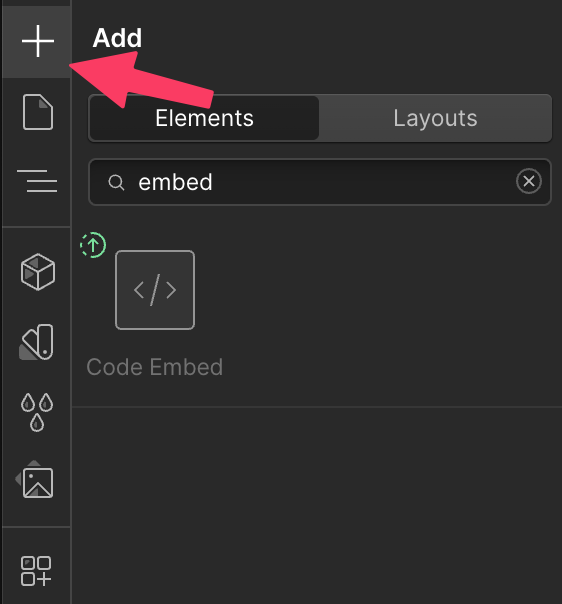
Search "embed" to find the "Code embed" component. It looks like a pair of code brackets with a backslash in ( </> ). At time of writing, it is toward the very end of the list under "Components".
Drag this element onto the canvas.
Once you add the code embed element to your canvas, you will see an area to enter the Growform HTML. Paste the HTML into the box and hit Save.
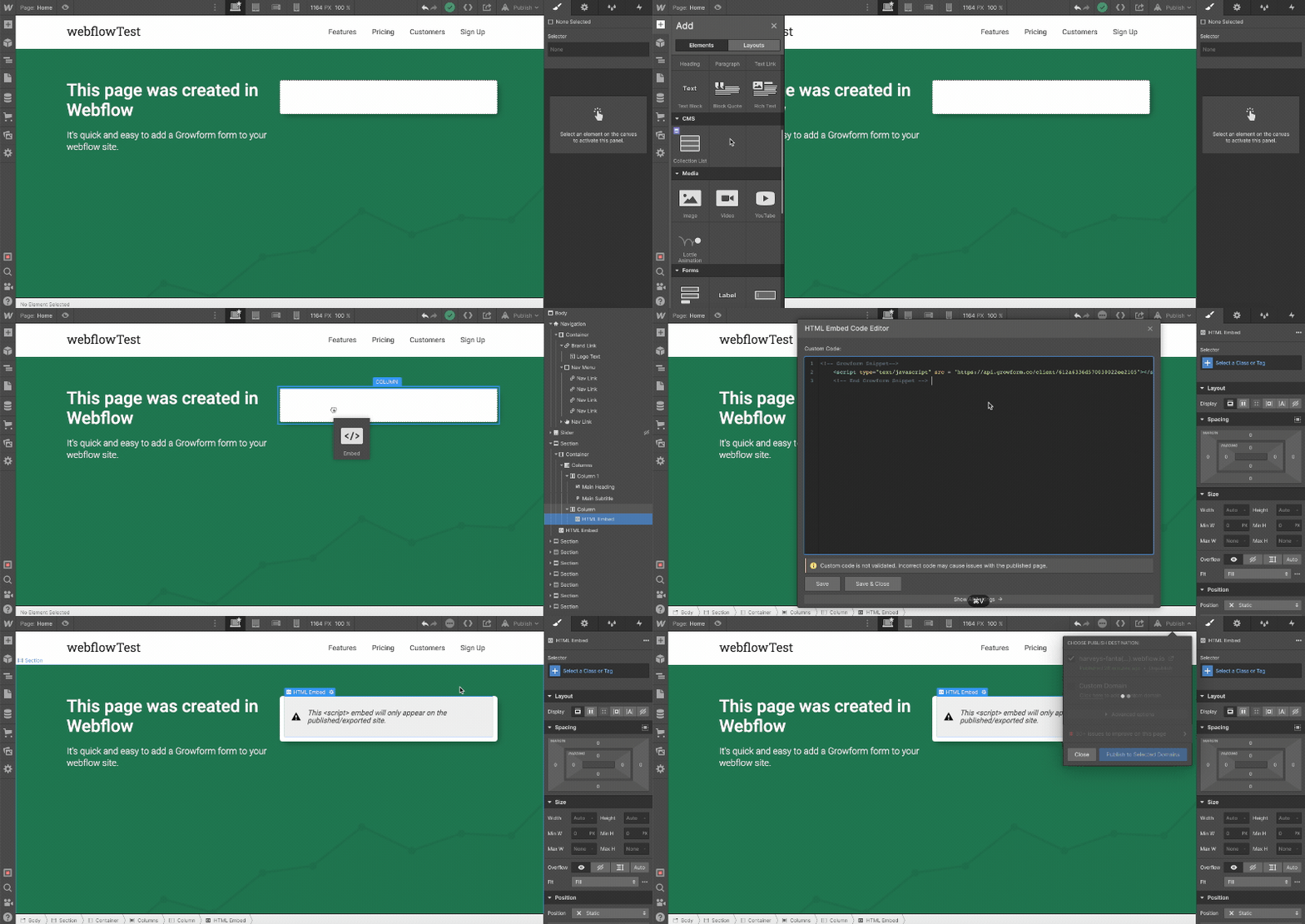
Don't forget to publish your site to see the code changes.
3.) Make some cosmetic adjustments to your form
Once you've added your form and published your page, depending on the template, you'll see something like this on your live Webflow domain:

Here are some adjustments you may wish to make to get your Webflow embed looking perfect:
- In Growform’s “Theme” settings, choose Minimal under canvas setup – this option removes the header and surrounding padding.
- Once you’ve chosen canvas setup, set the canvas background color to match the background color in Webflow, or choose “None” to make it transparent.
- Consider removing any headers, instructions or logos at the top of your Growform form – you can always have these in Webflow.
- Set “Show shadows” to “None” – these work best on white backgrounds only.
- Adjust your form’s primary color (which affects progress bars and accents), as well as the range of other colour settings.
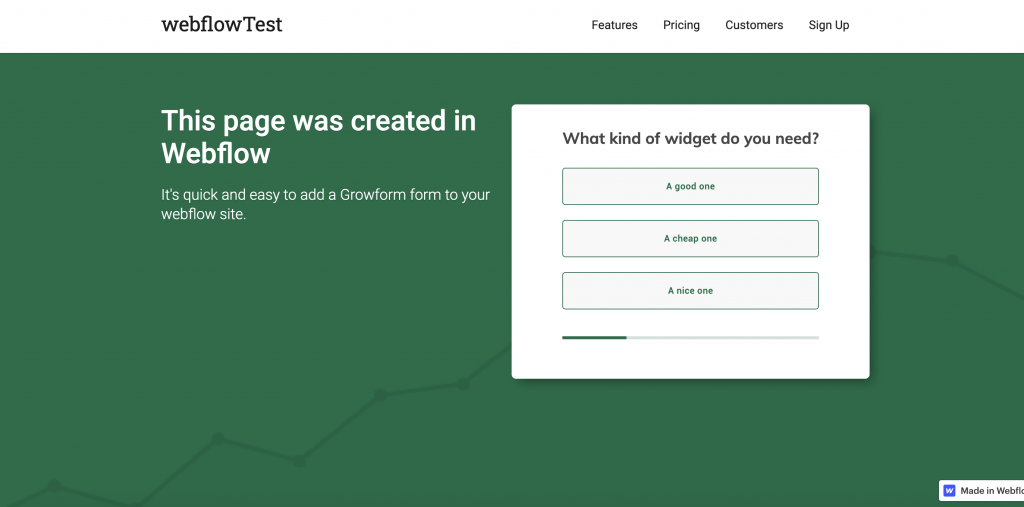
After just a few tweaks, we can get the form to fit in seamlessly with the Webflow site:
4.) Send your leads somewhere!
The leads will appear in your Growform account. You can use Zapier to send your leads to one of hundreds of destinations.
There's therefore no need to configure anything more in your Webflow account - anything to do with your leads will now be handled by Growform.
Growform also has a Webflow app in the Webflow app store, which makes it simple to embed your form.
FAQs
Q: The Growform form isn't as wide as I expected - how do I get it to take up more space?
A: Growform will always try to take up as much space as is given to it, so it is most likely that you need to increase the size of the surrounding element in the landing page builder. Failing that, you may need to increase the "Form width" under "Theme settings" in the Growform builder.
Q: How do I remove the space around my form to make it more compact for embedding?
A: In theme settings, you should choose minimal canvas set-up, which removes the header/footer and unnecessary spacing around your form. Under "form presentation" in theme settings, you can also reduce the padding on the top, bottom or sides as you wish.