How to Add Your Form As A Pop-Up In HighLevel
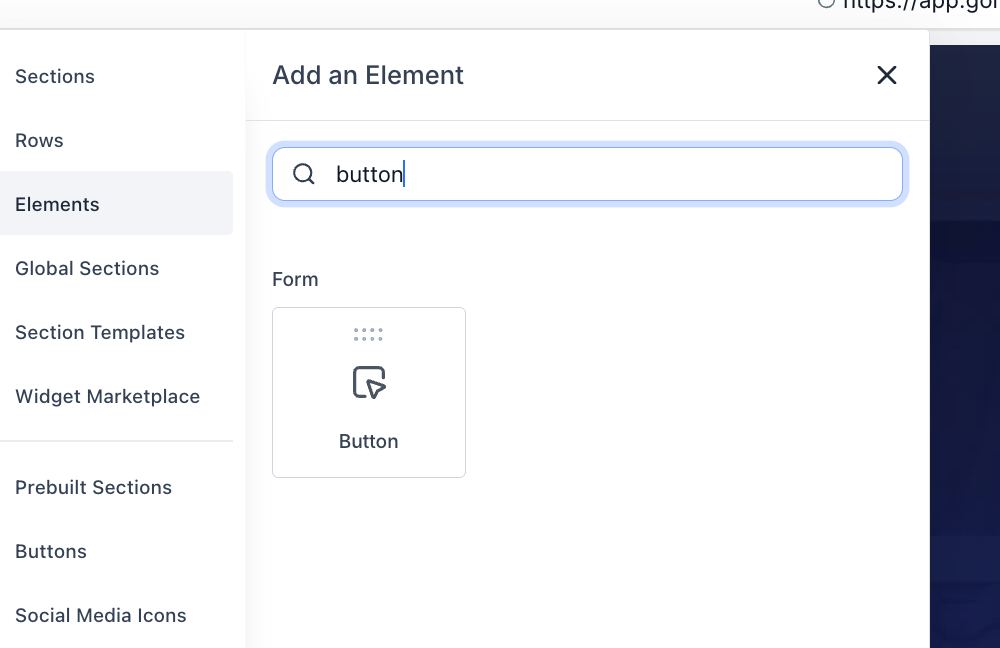
- Create a button on your Highlevel funnel/website - Hit "Add element", and choose the button element:
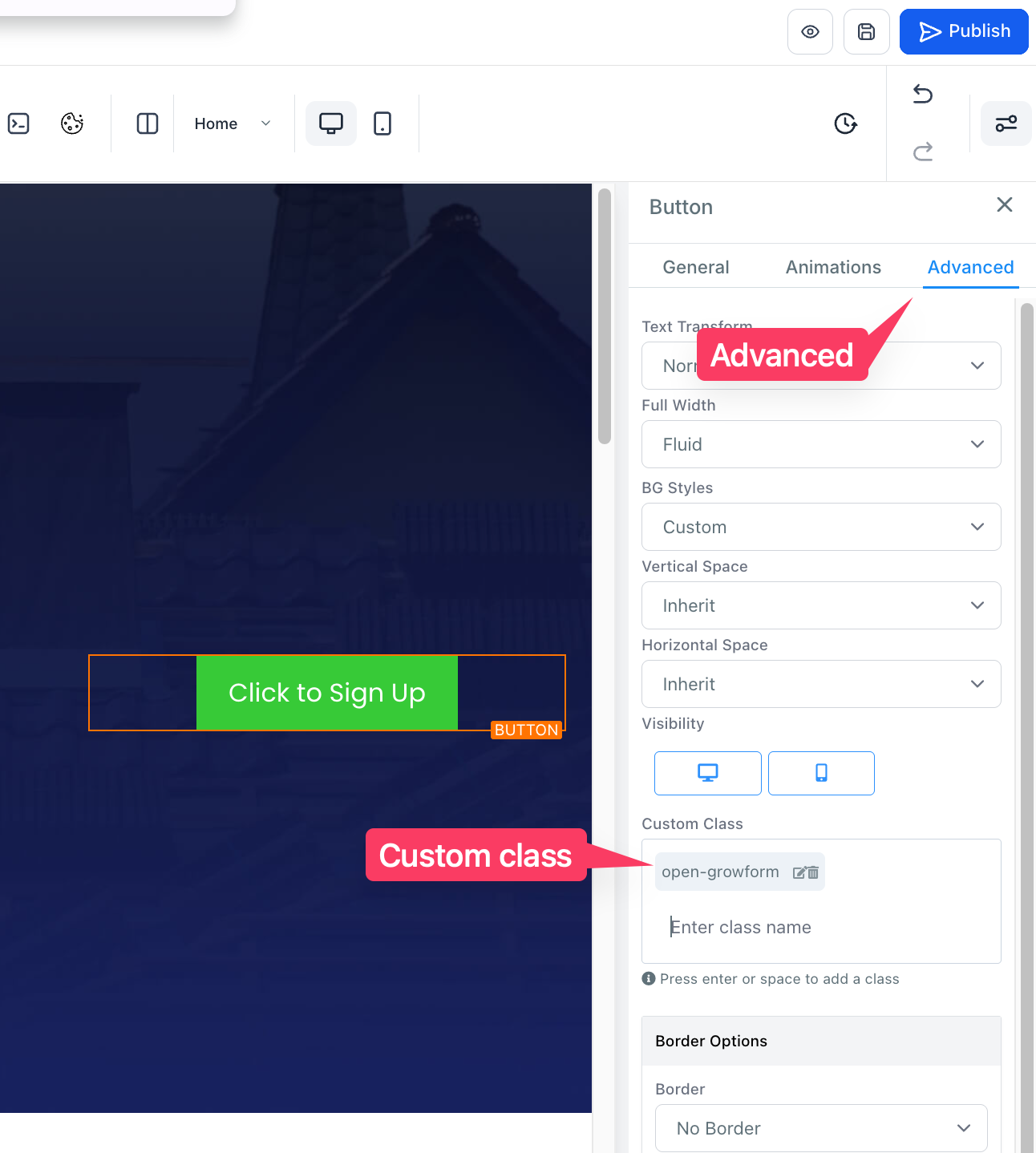
- 2. Add a CSS class to the button - hit "Advanced" on the right-hand side when the button is selected, and enter a CSS class name into the "Custom class" box. Be sure to hit "enter", save changes, and take note of your class name. You can choose any class you wish - in this example, we choose "open-growform", as this button will open the Growform form:
3 - Adjust the Growform pop-up code: Find the text in the code that says "myButton123". Adjust this to correspond to the class name you chose in step 2. For example, ours looks like this:

4 - Add the Growform pop-up code to "tracking code": In the Highlevel builder, find the icon that says "Tracking code". Hit this and paste the Growform code into the footer tracking section - it is important that the code appears after your button.
5 - Save changes and preview your page!
FAQs
Q: My pop-up isn't showing - why isn't it working?
A: First, check that "growformTargetClass" in your embed code corresponds to the class name on the button (i.e. it is not still "myButton123"). It is also essential that the pop-up code appears on the page after the button or triggering element, so try adding this further down the page.
Q: Are there any other ways to achieve a pop-up?
A: Yes. The simplest way would be to simply send users to your form's share link, and set this to open in a new tab. Alternatively, some customers choose to create a pop-up or overlay in their landing page builder (sometimes with an extension or plug-in), and embed our standard HTML code into that space. This can give more control over the layout of the overlay and allow for more advanced triggering.
Q: Can I have multiple buttons on one page, pointing to the same pop-up form?
A: Yes - simply give each button the same class name ("open-growform" in the above examples), and ensure the pop-up code is added only once, at the end of the page.
Q: My landing page builder doesn't let me add a classname - what can I do?
A: If you cannot add a class name, you can also target by ID: simply replace "growformTargetClass" with "growformTargetId" in order to target the ID (do not include the "hash" / # element).